
Copy an image
Use a screenshot, clipboard bitmap, or image file copied from Finder. Image2TTY detects the image and re-encodes it cleanly for agent-readable workflows.
 Image2TTY
Native macOS utility for AI coding agents
Turn screenshots into clean file paths for AI coding agents, terminals, editors, and SSH sessions instead of bulky image blobs.
7-day trial. The Pro unlock is handled inside the app through the App Store.
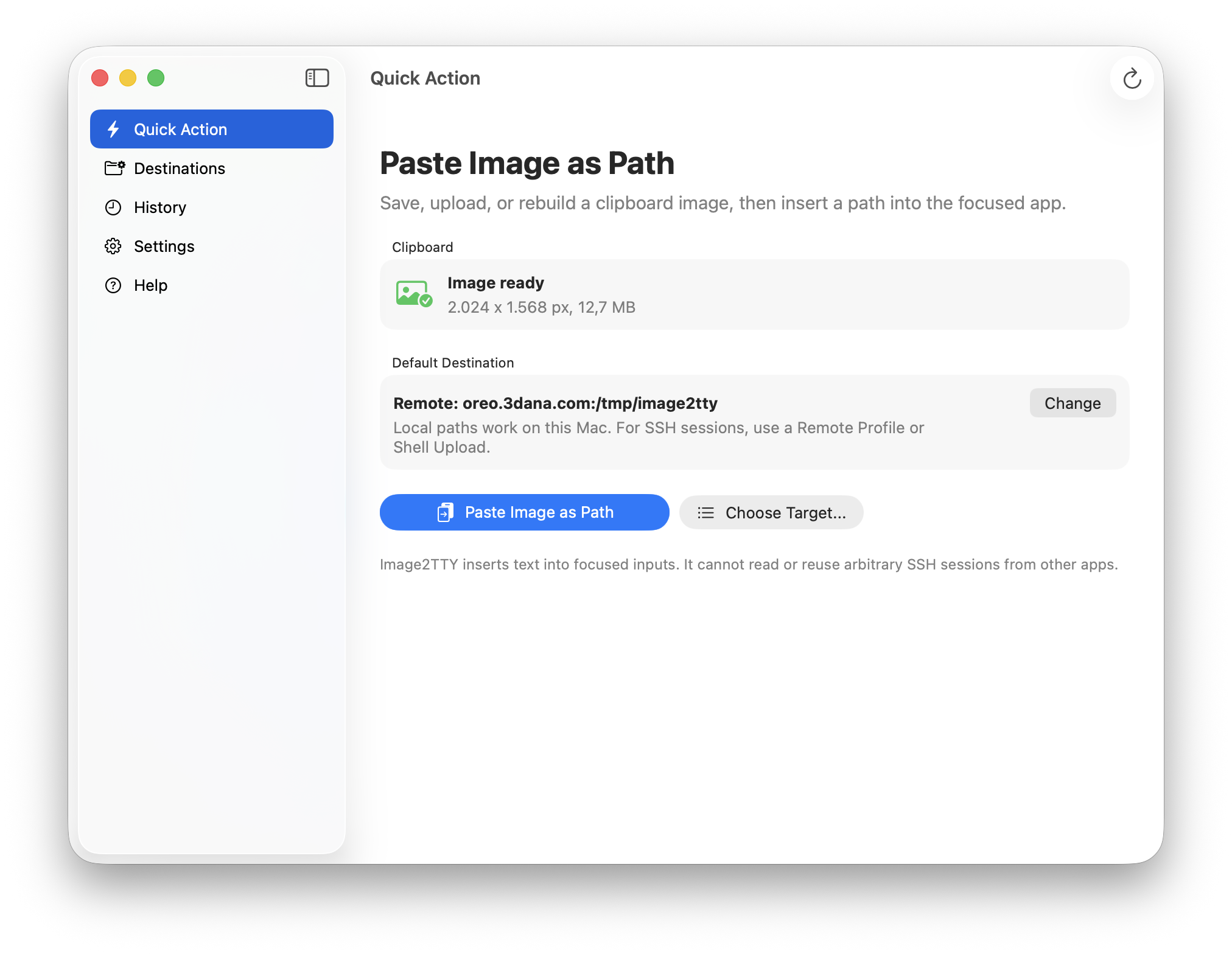
Built for AI coding work
When you are working with Codex, Claude Code, terminal agents, or remote developer tools, screenshots often need to become files before the agent can inspect them. Image2TTY turns the current clipboard image into a path the agent can open, read, analyze, and reference in the same conversation.
Take a screenshot of a UI bug, chart, terminal error, design reference, or browser state.
Image2TTY saves or uploads the image and copies a path instead of putting raw image data into your prompt.
Your AI agent receives a stable local path, remote path, or shell-created file it can inspect.
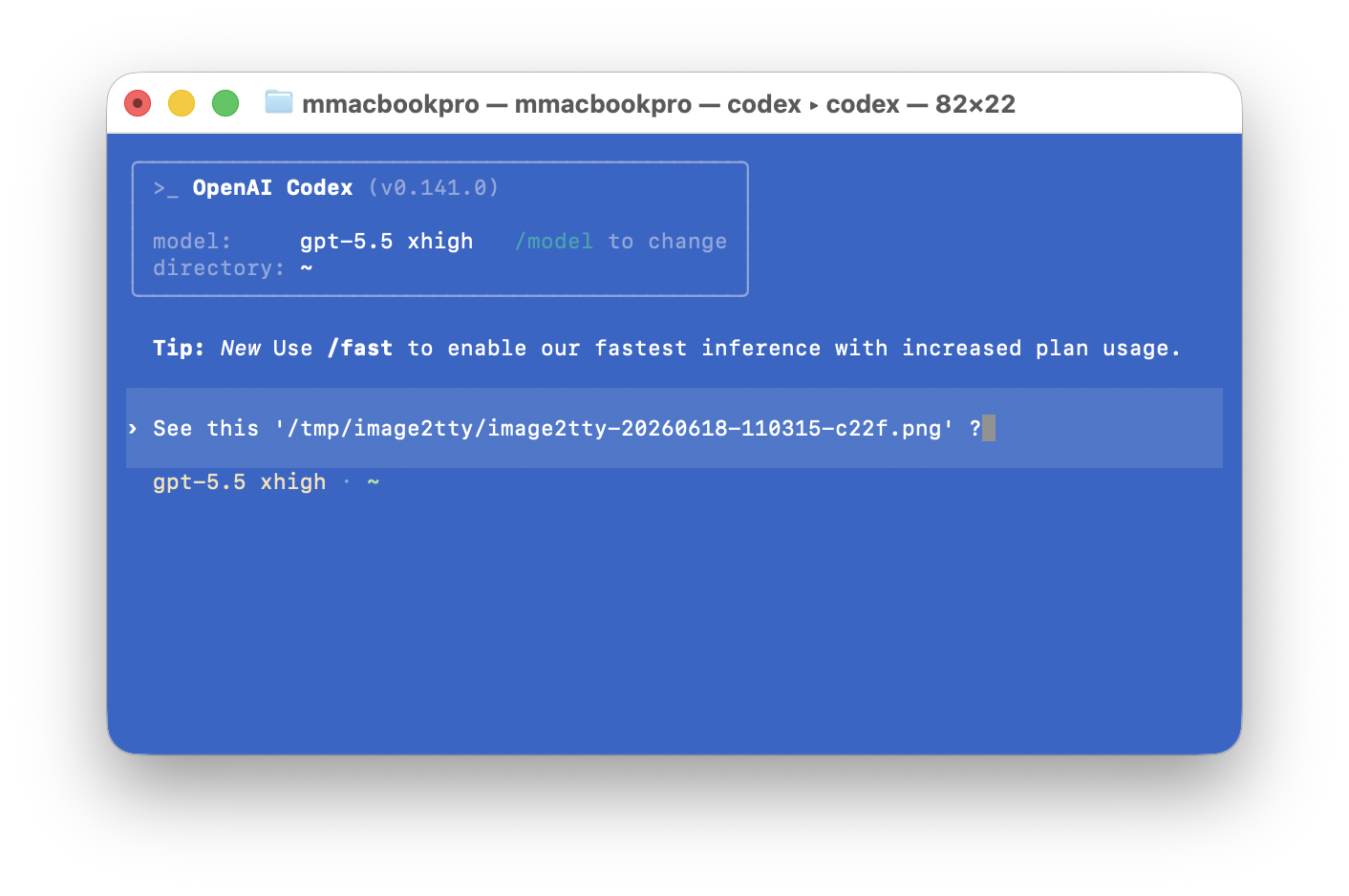
Codex example
A screenshot copied from macOS becomes a normal file. Your prompt can point Codex directly at it, which keeps the conversation text-based and easy to repeat.
Why it exists
Modern coding workflows often happen inside terminal agents, SSH sessions, browser consoles, and AI coding assistants. Those surfaces usually handle file paths better than rich clipboard image data. Image2TTY bridges that gap without running a terminal emulator or sending your images to a hosted service.
Use a screenshot, clipboard bitmap, or image file copied from Finder. Image2TTY detects the image and re-encodes it cleanly for agent-readable workflows.
Save locally, upload to a remote profile, or generate a shell upload script for the current terminal session.
Image2TTY copies a shell-safe path or script to the clipboard so you can paste it into the focused app with Cmd+V.
Workflow modes
Save the image on this Mac and copy a shell-escaped local path. This is ideal for local terminals, editors, scripts, and tools that can read files from your machine.
Upload the generated image through Image2TTY's SSH connection and copy the remote path that your server-side shell or coding agent can access.
Copy a POSIX-style script and paste it into the current shell prompt. The script creates the target directory, decodes the embedded image, writes the file, and prints the final path.
Remote uploads
Remote Profile mode is built around the system OpenSSH tools that developers already trust. Configure a host, username, destination directory, and authentication method. Image2TTY handles the upload and returns the exact server path you can paste into your remote shell or AI agent.
Password authentication is supported and stored in macOS Keychain. SSH keys, ssh-agent, and OpenSSH config usage are supported for teams that already manage SSH access centrally.
Privacy and security
Image2TTY is built as a local macOS utility. It does not operate a hosted upload service, does not collect analytics, and does not sell personal data.
Clipboard images are read on your Mac. They are only saved locally or uploaded to destinations you configure.
Remote profile passwords are stored in macOS Keychain. Image2TTY does not store payment card data.
Image2TTY copies generated text to the clipboard and shows a clear prompt when it is ready for you to press Cmd+V.
The Pro unlock is processed by Apple through the App Store. Restore Purchase is available from the app.
Trial
Image2TTY is a focused utility for people who repeatedly move images into text-first development workflows. The trial gives you time to test local, remote, and shell upload modes with your real tools.
One-time App Store unlock after the 7-day trial.
FAQ
No. Image2TTY does not emulate a terminal and does not read your terminal contents. It prepares text and copies that text to the clipboard.
Yes. Remote Profile mode uses SSH with your configured host, username, directory, and authentication method. Password profiles store passwords in Keychain.
Use Shell Upload when you are already inside the target shell or SSH session and want the image file created there without opening a second connection from the app.
Image2TTY copies the generated path or script to the clipboard. When the on-screen message says it is ready, press Cmd+V in your terminal, editor, or AI coding tool.
Image2TTY can read common clipboard image data and Finder image file URLs, then write clean PNG or JPEG output.
No. Image2TTY uses a 7-day trial followed by a one-time non-consumable App Store purchase.